

inkBoard also provides an interface to aid in designing dashboards. It is mainly there to speed up the process, since it may not always be as easy to iterate over a dashboard configuration on platform. To aid in accessibility, most widgets have tooltips explaining their use.
The designer is not only meant for designing however. To keep the size the inkBoard library itself as small as possible, integrations and platforms are distributed with the designer. inkBoard and the designer integrate quite smoothly, and if you do not want the hassle of packaging, copying and installing to a platform, inkBoard accesses the designer integrations and platforms when indexing what is available. Requirements for integrations and platforms are not preinstalled with the designer, however. The appropriate install command still needs to be called, but again, the modules themselves can be located within the designer.
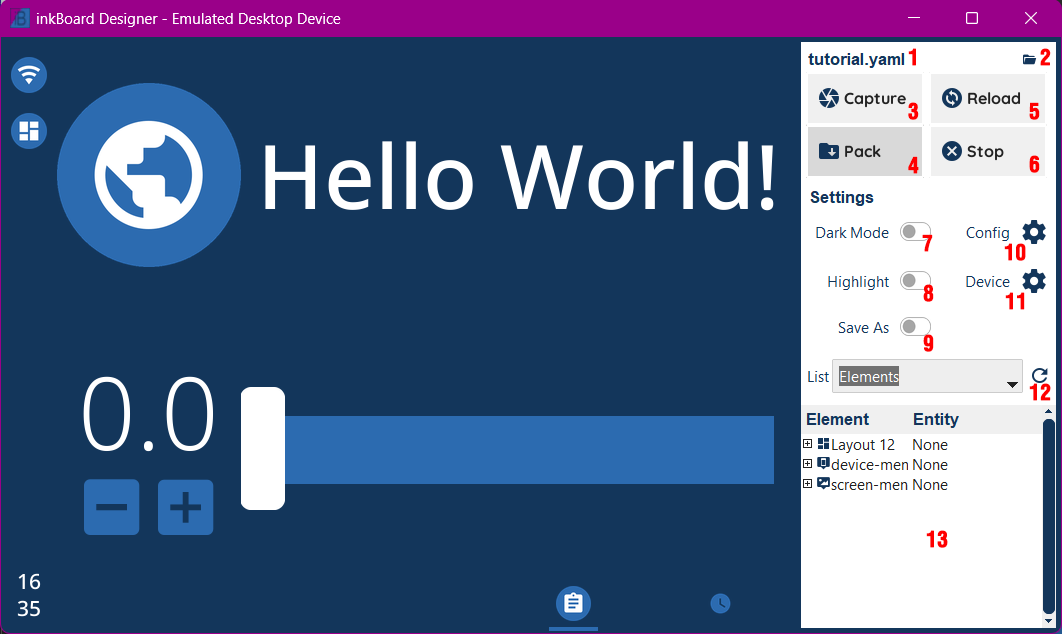
This documentation is currently very incomplete, but the designer still is as well. As the designer is improved upon, this documentation will be as well. For now, the figure and table from the tutorial are repeated below.
Number |
Desciption |
Usage |
|---|---|---|
1 |
Configuration file name |
Shows the currently loaded dashboard configuration file. Click it opens the folder of said file (at least on windows) |
2 |
Folder Icon |
Opens a dashboard file and runs it |
3 |
Capture |
Makes a screenshot of the current dashboard view |
4 |
Pack |
Creates a package of the currently loaded config. Packages all files currently, so the required platform folder, imported integrations, and all files in the configuration file folder. |
5 |
Reload |
Reloads the configuration of the currently running config |
6 |
Stop |
Stops the current running config |
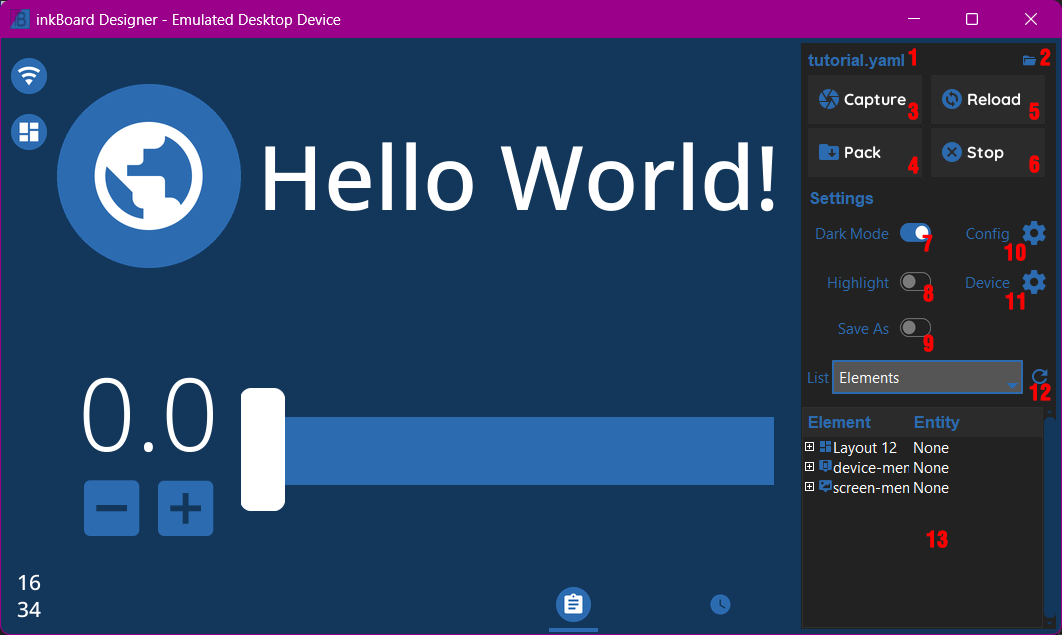
7 |
Dark Mode |
Toggles Dark Mode |
8 |
Highlight |
Toggles element highlighting when selecting an element from a compatible treeview item. |
9 |
Save As |
If turned on, this will allow specifying the filename and location of any screenshots or element images being saved. Otherwise they are automatically saved in the screenshots folder of the config |
10 |
Config |
Opens a window with information on the current config. The window is not yet implemented. |
11 |
Device |
Shows info on the device, and allows changing certain behaviours of the emulator. |
12 |
Tree List |
Selects which treeview to show below. |
13 |
Treeview Area |
If selected, shows a treeview with certain info. The |